Architectural visualization
Refine the textures and details in your existing exterior renders before the next design review.

AI finishing studio for architectural imagery
AZ AI refines the materials, light and detail in the renders you already have, then upscales them for presentation. Built for architectural visualization artists.
12 free credits after email verification. No card required.
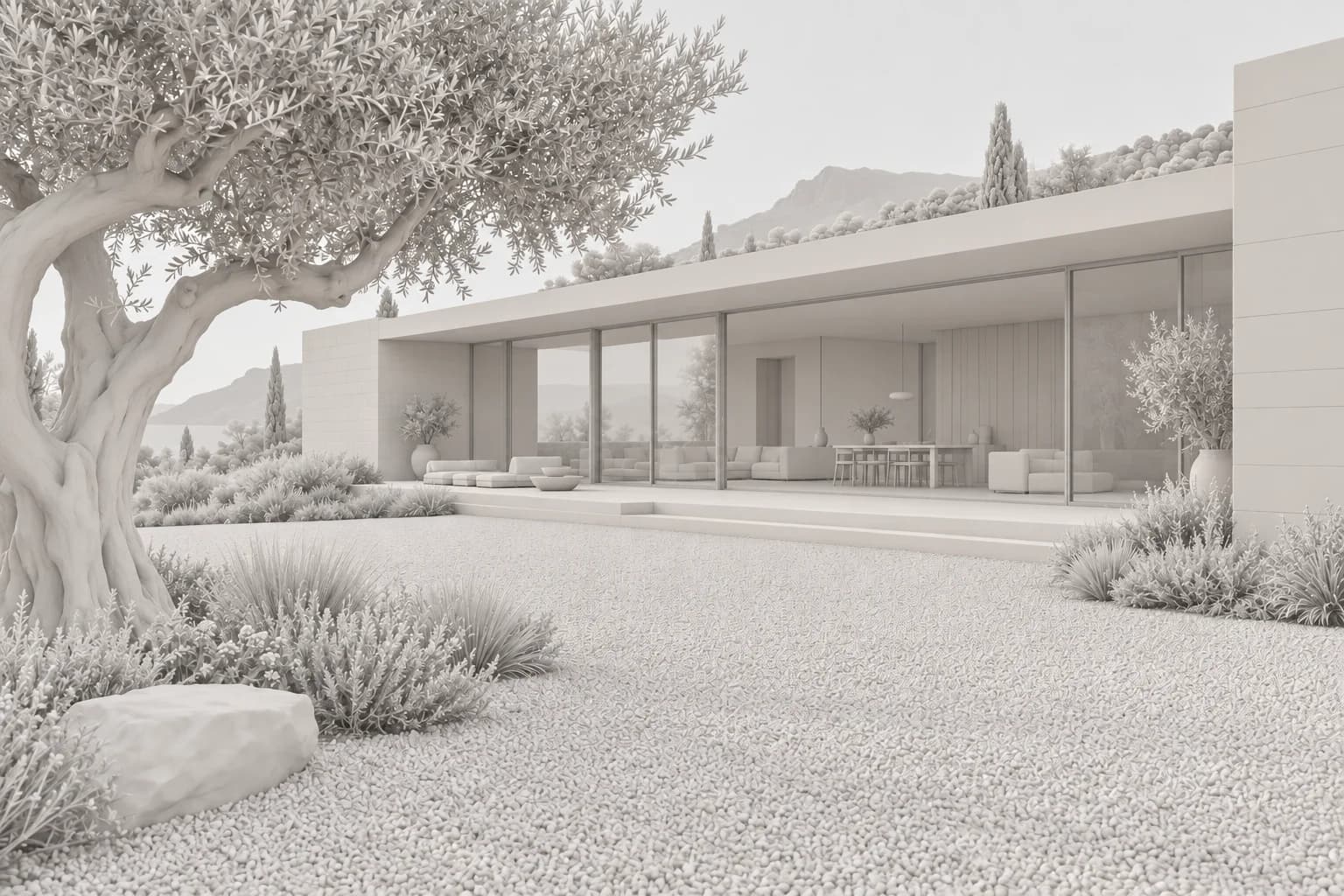 Raw render
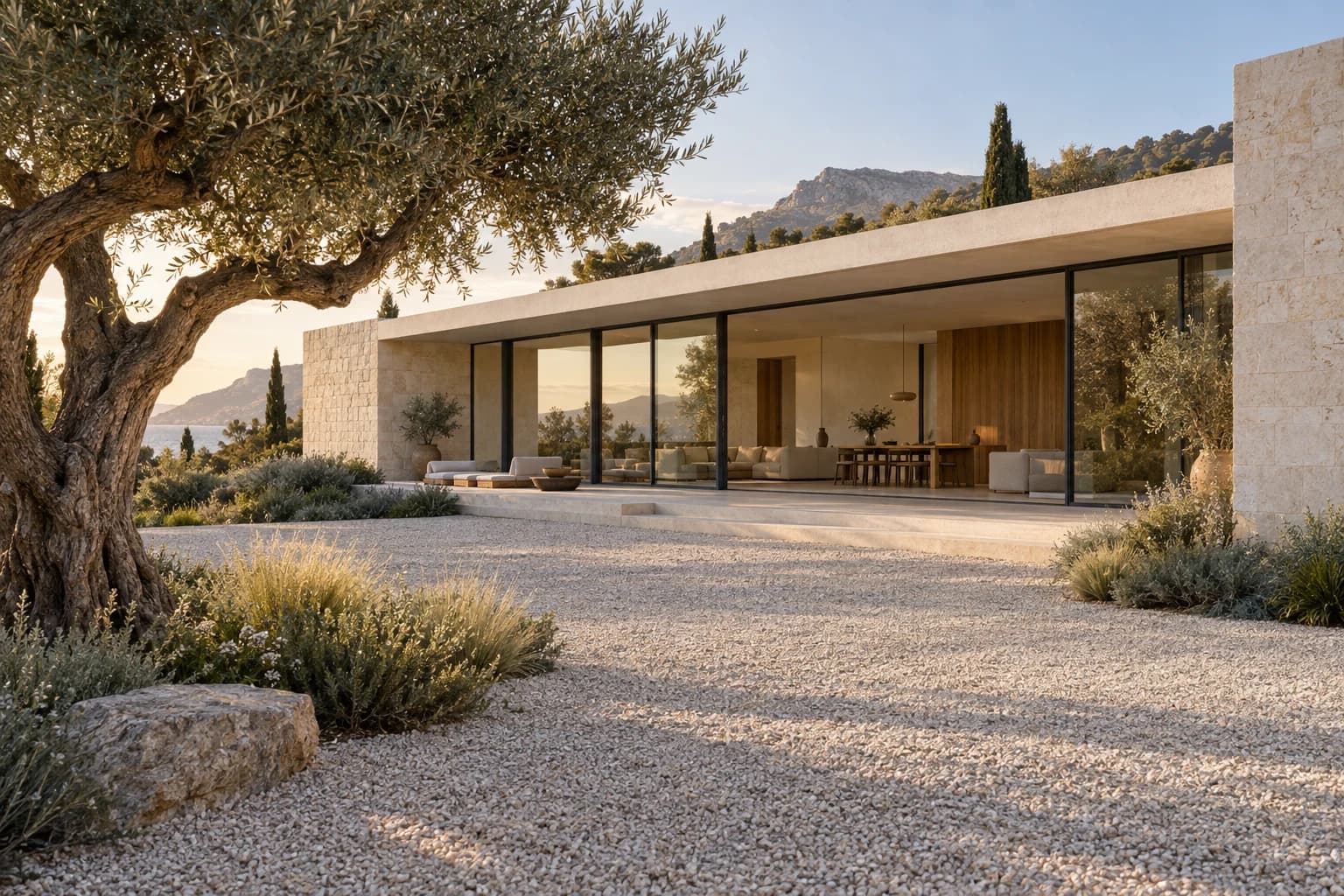
Fig. 01 / Courtyard houseOne scene, from raw render to finished image.
Move across the render to finish itDrag across the render to finish it
The name
AZ AI is made for architectural visualization: the exterior renders, interiors and presentation images a studio produces every week.
The toolset
Each tool does one job on the image you bring. Scroll through them, and try each one on the stage.
Turn a flat render into a finished surface.
General Enhancement rebuilds material definition, light and micro-detail while keeping your geometry and composition. Add the Advanced Detailer or guide the result with a short prompt.
More pixels where the eye goes looking.
Upscale enlarges an image 2×, 4× or 8× so stone joints, foliage and glazing hold up on a large screen or in print. Move the lens to see what the extra resolution carries.
384 × 256 → 1536 × 1024
Say what should change. Keep the rest.
Edit will take a written instruction and apply it to one part of the image, so a late design change does not mean another full render.
Turn on the interior lights
One scene, any hour of the day.
Mood will relight a finished image for a different time or atmosphere, from clear day to dusk, night or fog, so you can show a client the options.
From upload to download
The studio keeps your source, settings and results side by side, so each pass builds on the last one.
Bring a render as JPG, PNG or WebP, up to 7 MB.
Enhance or Upscale. One click switches between them.
A short panel of controls with sensible defaults.
Credits are reserved from the input size, and refunded if a job fails.
Slide between original and result, and zoom up to 800%.
Save the file, or load the same settings for the next pass.
Organize results into projects and folders, with source images and outputs in the library.
Return to completed results and reuse settings without rebuilding your workflow from scratch.
Contact us on WhatsApp when you need more credits or want to discuss a studio package.
Made for visual thinkers
A finishing workspace for people who care about materials, light and the details that make an image convincing.
Explore the workflowsRefine the textures and details in your existing exterior renders before the next design review.
Explore detail, surface definition and image clarity in the spaces you have designed.
Enhance and upscale visual assets, compare versions and keep project results together.
Simple access. Clear expectations.
Try the image tools with gifted credits. When you are ready for more, talk to us directly. Paid packages are provisional while we shape the beta with your feedback.
12credits
A small first step into your own AI workspace.
100credits
A proposed credit pack for a focused body of work.
500credits
A proposed starting point for an ongoing workflow.
Project and Studio are proposed beta packages, not finalized subscriptions. Pricing and availability are confirmed directly. Sending a message does not make a purchase.
At the current rate, a 1920 × 1080 input uses 3 credits per image job, so 12 credits covers about 4 runs. Usage varies with input dimensions and configured rates; larger images use more.
A different project or a bigger idea?
Let's talk on WhatsAppA little clarity
A few practical answers before you try the workspace.
View all questionsCreate an account and verify your email to receive 12 gifted credits once. Use them to try the available image workflows. No payment card is needed for the trial.
Image upscaling and enhancement are available now. Upload an image, choose your settings, and review the result in your workspace. Enhancement includes an optional prompt and controls for detail, noise, and sharpening. AI can change details, so inspect each result before using it.
Image-to-video and animation are planned. They are not available in the current beta. The homepage identifies concept imagery and previews separately from real workflow results.
The number varies with the input image dimensions and the configured credit rate. At the current beta rate, a 1920 × 1080 image uses 3 credits per request, so 12 credits cover four requests at that size. Larger images use more credits; settings may change during beta.
Open the Credits page and choose a beta package to request more credits through WhatsApp. The team will confirm availability and terms before adding credits. Project and Studio packages are provisional; contacting us does not start a subscription or automatic payment.
Only upload images you have permission to use. Commercial use depends on your input rights, applicable model licenses, and the platform terms. Review the published policies or ask the team before using a result in client work. Do not treat a generated visual as an accurate architectural specification.
Your next image starts here
12 free credits after email verification. No card required.
Illustrative concept · AI-created imagery, not an AZ-AI result.